Fun 2 - [Python] Pong in Pygame
Apr. 4, 2021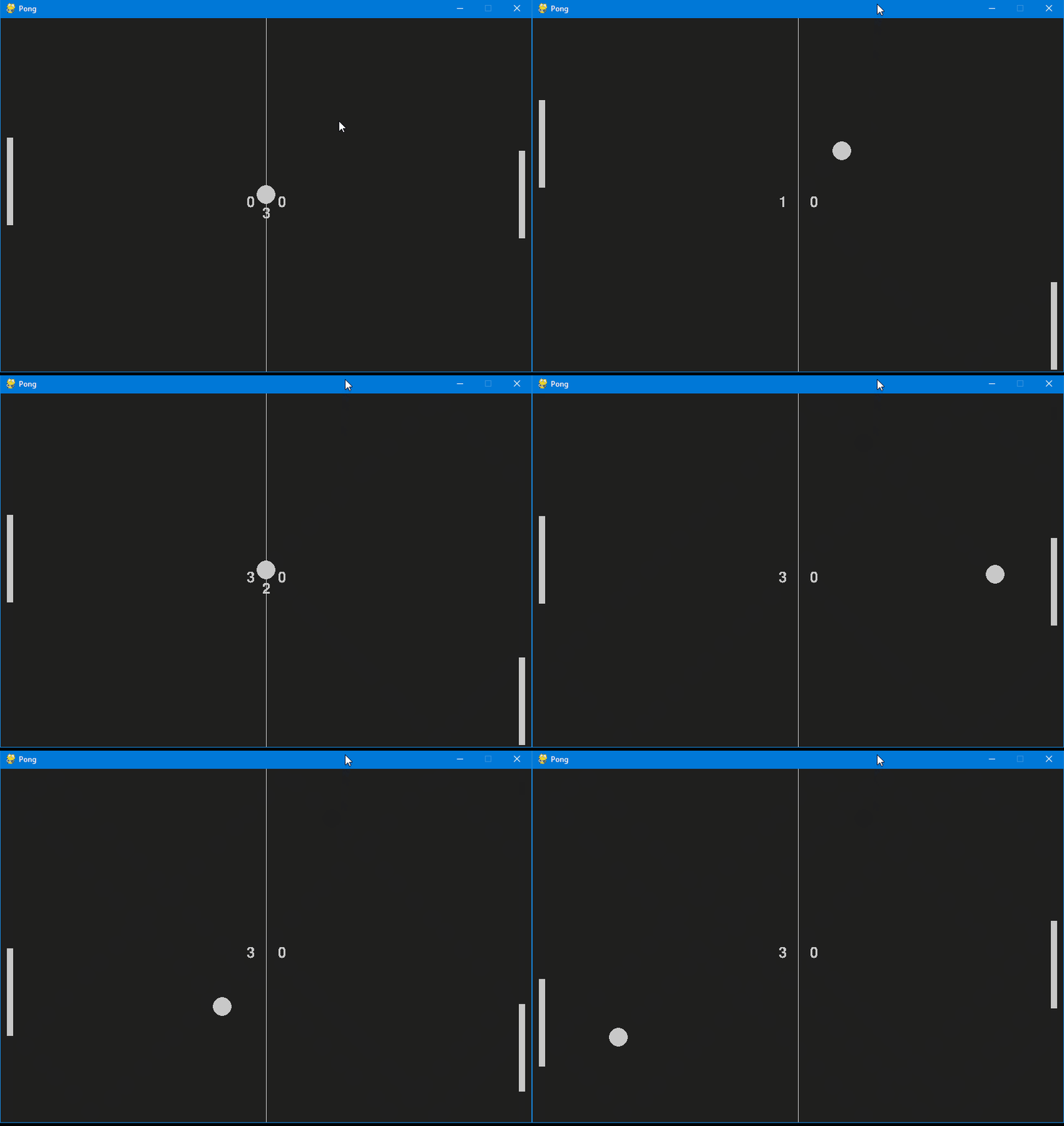
To continue from the game theme from the last post, we are going to create the classic Pong game using the PyGame module. PyGame is designed for writing video games. Therefore it has functiontality to support concepts and operations in game such as rendering, object boundaries, collisions, etc… PyGame is free and you can install it using the pip command.
Requirements
Once again we start with requirements. In a Pong game, there are two players that protect their side of the table with a paddle. A score is given to the opponent if the ball goes pass the boundaries of the table. The game restarts with the ball in the middle. From the snapshot above, we could see that for the user interface we need:
- a surface to act as the table
- two paddles, one represents the user, one represents the opponent
- a ball
- scoring
And for the functionality:
- the ball animation, including collision detection
- paddle movement, one controlled by user input, the other by the program
- update scoring and restart game
Implementation
One question that I used to ask myself in the earlier day is that, “which should I design and implement first, the front-end / ui or the back-end / business logic”. Well, you may already know the answer, it depends.
From my own experience, it is better to start implementing the UI if your program is something simple enough, or maybe along the line of you need a prototype since you don’t have a good grasp of what functionality you need. You can start with the UI in order to help you get a better image of how you want the component to behave and then tie in the functionality later. This is what we are going to do.
On the other hand, if you have something more complex, start with laying out the design, think hard about the architecture, set up the basic back-end skeleton and components. This approach will be more time consuming but more organized and structurely more rigid than the front-end first approach.
Creating the window
# General setup
pygame.init()

# Setting up the main window
screen_width = 848
screen_height = 565
screen = pygame.display.set_mode((screen_width, screen_height))
pygame.display.set_caption('Pong')

# Game Rectangles
ball = pygame.Rect(screen_width / 2 - 15, screen_height / 2 - 15, 30, 30)
player = pygame.Rect(screen_width - 20, screen_height / 2 - 70, 10, 140)
opponent = pygame.Rect(10, screen_height / 2 - 70, 10, 140)

# Colors
bg_color = pygame.Color('grey12')
light_gray = (200, 200, 200)

# Game Variables
ball_speed_x = 7 * random.choice((1, -1))
ball_speed_y = 7 * random.choice((1, -1))
player_speed = 0
opponent_speed = 7

# Text Variables
player_score = 0
opponent_score = 0
game_font = pygame.font.Font('FreeSansBold.ttf', 24)
I have divided up the code into sections. We need to initialize pygame, then creating the window using pygame.display with the predefined screen_height and screen_width. We are going to use Rect to make our ball and paddles. This will create objects with a rectangle boundaries that can be used for collision detection.
Then we need variables to contain the speed of each object. Since the ball can move in four directions (up, down, left, right), we need two variables for speeds along both the horizontal and vertical axes.
Lastly, we need a variable for the score each, and the game font. This is only the declaration and initialization of these variables.
Creating the game loop
In order for them to show up on the screen, we also need to render them inside the game loop:
while True:
    # Visuals
    screen.fill(bg_color)
    pygame.draw.rect(screen, light_gray, player)
    pygame.draw.rect(screen, light_gray, opponent)
    pygame.draw.ellipse(screen, light_gray, ball)
    pygame.draw.aaline(screen, light_gray, (screen_width / 2, 0), (screen_width / 2, screen_height))

    player_text = game_font.render(f"{player_score}", False, light_gray)
    opponent_text = game_font.render(f"{opponent_score}", False, light_gray)
    screen.blit(player_text, (screen_width / 2 + 20, screen_height / 2 - 3))
    screen.blit(opponent_text, (screen_width / 2 - 30, screen_height / 2 - 3))

    # Updating the window
    pygame.display.flip()
    clock.tick(60)
Now, we can start adding functionality to the ball and the paddles.
def ball_animation():
    global ball_speed_x, ball_speed_y, player_score, opponent_score, score_time

    ball.x += ball_speed_x
    ball.y += ball_speed_y

    if ball.top <= 0 or ball.bottom >= screen_height:
        ball_speed_y *= -1
    elif ball.left <= 10:
        player_score += 1
        ball_start()
    elif ball.right >= screen_width - 10:
        opponent_score += 1
        ball_start()
    else:
        ball_speed_x *= 1
In the code above, we change the position of the ball by updating its x and y coordinate. We also check for collisions. There are 4 cases of collision in total:
- The ball collides with the top and bottom of the screen: change y direction
- The ball collides with the left and right of the screen: round ends, increment the score, and restart game
- The ball collides with the paddles: change x direction
We implement similarly for the player_animation() and opponent_animation(), updating y coordinate according to the speed, and check for top and bottom collisions.
Next, we need to listen for user input. We call these events. Events are registered by PyGame and there are many types of events. We are listening to the event QUIT for when we close the window, and the event KEYDOWN for everytime we pressed the arrow keys on the keyboard. The keyboard inputs also change the player_speed that change the player position in player_animation().
    # Handling input
    for event in pygame.event.get():
        if event.type == pygame.QUIT:
            pygame.quit()
            sys.exit()
        if event.type == pygame.KEYDOWN:
            if event.key == pygame.K_DOWN:
                player_speed += 7
            if event.key == pygame.K_UP:
                player_speed -= 7
        if event.type == pygame.KEYUP:
            if event.key == pygame.K_DOWN:
                player_speed -= 7
            if event.key == pygame.K_UP:
                player_speed += 7
Putting together the game loop, we have the basic Pong game completed.
while True:
    # Handling input
    for event in pygame.event.get():
        if event.type == pygame.QUIT:
            pygame.quit()
            sys.exit()
        if event.type == pygame.KEYDOWN:
            if event.key == pygame.K_DOWN:
                player_speed += 7
            if event.key == pygame.K_UP:
                player_speed -= 7
        if event.type == pygame.KEYUP:
            if event.key == pygame.K_DOWN:
                player_speed -= 7
            if event.key == pygame.K_UP:
                player_speed += 7

    # Game Logic
    player_animation()
    opponent_ai()
    ball_animation()

    # Visuals
    screen.fill(bg_color)
    pygame.draw.rect(screen, light_gray, player)
    pygame.draw.rect(screen, light_gray, opponent)
    pygame.draw.ellipse(screen, light_gray, ball)
    pygame.draw.aaline(screen, light_gray, (screen_width / 2, 0), (screen_width / 2, screen_height))

    player_text = game_font.render(f"{player_score}", False, light_gray)
    opponent_text = game_font.render(f"{opponent_score}", False, light_gray)
    screen.blit(player_text, (screen_width / 2 + 20, screen_height / 2 - 3))
    screen.blit(opponent_text, (screen_width / 2 - 30, screen_height / 2 - 3))

    # Updating the window
    pygame.display.flip()
    clock.tick(60)
However, in order to have something similar to the snapshot, you need the following feature:
- To change the y direction of the ball to the moving direction of the paddles: this requires you to know in which direction the paddles are moving, up or down
- To have the countdown instead of just restarting the game immediately: in the
ball_start()method, you need a timer and print out the countdown
Discussion
If you take a look at the full code, you could see that it is pretty messy, especially with all the global variables lying around.
You can take this code and try to refector it or improve it.
One way that we can clean up the code is to create classes. This way we don’t have to put global everywhere. However, we should also consider if it worths the effort.
We all want clean, organized, and beautiful code. But in reality, we always need to consider, “At what cost?”. And you may guess correctly, it is another question whose answer can only come from your own experience. If we take this Pong game as an example, it may takes you 45-60 minutes to finish writing the code and everything run correctly. If we are going to introduce classes, and organize the code, it may take 2 hours. Then we also need to realize that this is supposed to be a fun little project, is there benefit we can get in the long run by doing the right way or is it okay to leave it messy but running?