Fun 3 - [Python] 2D Bouncing Ball
Apr. 4, 2021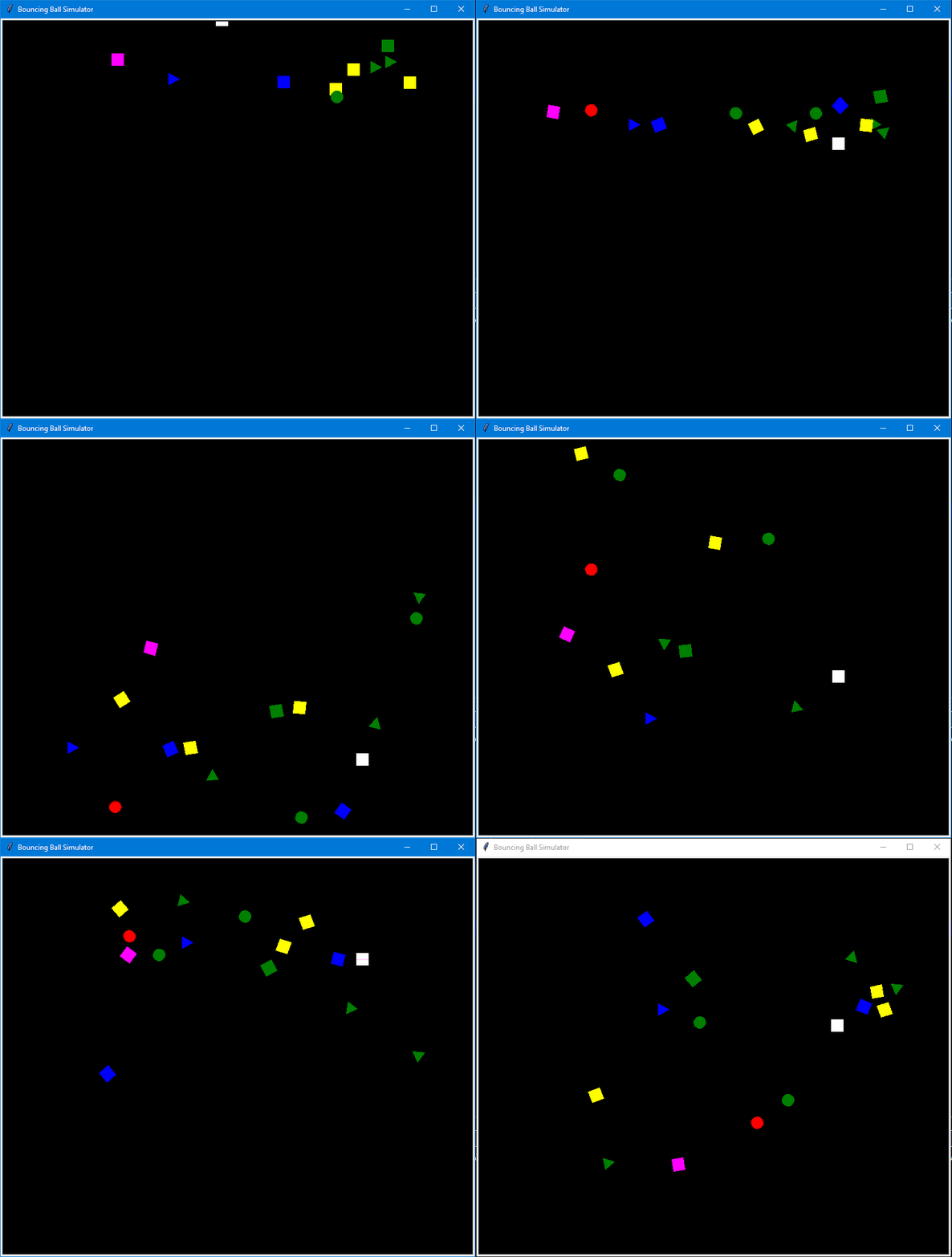
In this part 3 of the series, I am going to introduce another Python module that usually used for making fun, little experiments for kids called turtle. With this module, you can set up a Turtle, an object with all the graphical functionality such as to move, draw, color. It is quite similar to the PyGame module, but with simpler methods.
Requirements
We are going to build a bouncing ball simulation as shown in the snapshot above.
- A ball is dropped from a specific height
- Its speed increases while falling, and decreases as it bounces back up
- Collision with left, right, bottom of the box, and collision between each other
Implementation
First, we create a ball object using the Turtle class and render it on to the screen:
# Initialize
window = turtle.Screen()
window.bgcolor("black")
window.title("Bouncing Ball Simulator")

# Ball object
ball = turtle.Turtle()
ball.shape = "circle"
ball.color = "green"
ball.penup()
ball.speed(0)
ball.goto(0, 200)

window.mainloop()
The code above will give you a green ball in the middle of the screen and towards the top. One thing you need to take note here is that in PyGame, the coordinate of the frame origin (0, 0) starts in the top left corner, whereas in Turtle, the origin is in the middle of the screen.
The next step is to implement the falling animation with increasing speed. Since the built-in functions for moving in Turtle is not quite suitable for the task, we set ball.speed(0) and build the moving functionality by using our own properties.
window.tracer(0)

ball.dy = 0

gravity = 0.3

while True:
    window.update()

    ball.dy -= gravity
    ball.sety(ball.ycor() + ball.dy)
We add window.tracer() as well as window.update() in order to control how fast the screen get updated. You will need to figure out which parameters will best suit with your program since the different components you have on the screen will require specific paramters to run smoothly.
We also create a new property called dy to represent the ball’s speed along the y axes and add it to the object. Although there’s no dy property in the Turtle class, Python allows us to create and add new property to the object. Then we have gravity which simulates how real-life gravity will affect the falling. Here, we are using a fixed value to make it simple, but you can go ahead and implement with the correct acceleration formular used in physic. We now have on the screen, a ball that falls down and disappear from the screen. This is where collision happens and the ball bounces back up.
    # Check for ball boucing off the ground
    if ball.ycor() <= 300:
        ball.sety(-300)
        ball.dy *= -1
And that’s it, we have a ball that falls and bounces indefinitely. But the ball always dropped from the same place, and only travel in the vertical trajectory. We can add more features to make it more realistic and exciting.
- Adding the horizontal movement to the ball
- Collision between the ball and the left / right wall
- Adding multiple balls in different shapes which are dropped in random position
- Collision between the balls
For the first and second feature, you simple need to add dx property and the collision checking method, similar to what you have already implemented. It’s the last two features that I would like to focus on.
In this scenario, we are having multiple objects of the same type but having different properties values. This is when we need to create a class. We will call this class Ball and make this a subclass of the Turtle class.
class Ball(turtle.Turtle):
    def __init__(self):
        turtle.Turtle.__init__(self)
        self.shape(random.choice(shapes))
        self.color(random.choice(colors))
        self.penup()
        self.speed(0)
        self.goto(random.randint(-290, 290), random.randint(200, 450))
        self.dy = 0
        self.dx = random.randint(-3, 3)

    def ball_animation(self):
        self.dy -= gravity
        self.sety(self.ycor() + self.dy)
        self.setx(self.xcor() + self.dx)

    def check_wall_collision(self):
        # Check for bounce off wall
        if self.xcor() >= 300 or self.xcor() <= -300:
            self.dx *= -1

        # Check for bounce off ground
        if self.ycor() <= -300:
            self.sety(-300)
            self.dy *= -1

balls = []
colors = ["red", "blue", "yellow", "orange", "green", "magenta", "white"]
shapes = ["square", "circle", "triangle"]

for _ in range(15):
    balls.append(ball)
We created the class Ball and now can easily create 15 Ball objects by generating an array with 15 elements of type Ball. The Ball object also has all the properties and methods that it inherits from the superclass Turtle. In addition, we introduce new properties that only belong the Ball class such as dy and dx. We also moved the methods for the animation and collision checking into the class. Now, the game loop becomes much simpler.
while True:
    window.update()

    for ball in balls:
        ball.ball_animation()
        ball.check_wall_collision()

    # Check for collisions between the balls
    for i in range(0, len(balls)):
        for j in range(i + 1, (len(balls))):
            if balls[i].distance(balls[j]) < 20:
                balls[i].dx, balls[j].dx = balls[j].dx, balls[i].dx
                balls[i].dy, balls[j].dy = balls[j].dy, balls[i].dy
Finally, for collision checking between the balls, instead of manually checking if the boundaries of the balls overlapped with each other (ball a left vs. ball b right, etc…), we can do so by calculating the distance between the two balls (distance between the centers). Therefore we are using the .distance() method to check for collision and then update the ball with new speed and direction.